

If your agency uses the CARMIS Room Manager / Housing module, this article will provide instructions for moving tenants in/out of rooms. If your agency does not use the Housing module or if the client is not currently a tenant, then please instead see How to update the address of a client.
Move-ins/Move-outs Via Client Profile
Please see How to update the address of a client. Please note the following:
- At the step where an address is entered, "New Address" should be selected.
- For move-ins: enter the move date, building, and room number.
- For move-outs: the move date and postal code will need to be entered.
Note that with this method, the client will only appear on Rooms Dashboard if the address details match an existing room.
Move-ins/Move-outs Via Rooms Dashboard
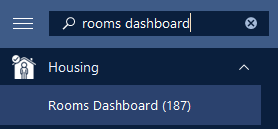
Step 1: Search for the Rooms Dashboard (187) form in the sidebar.
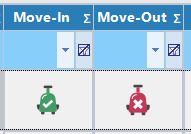
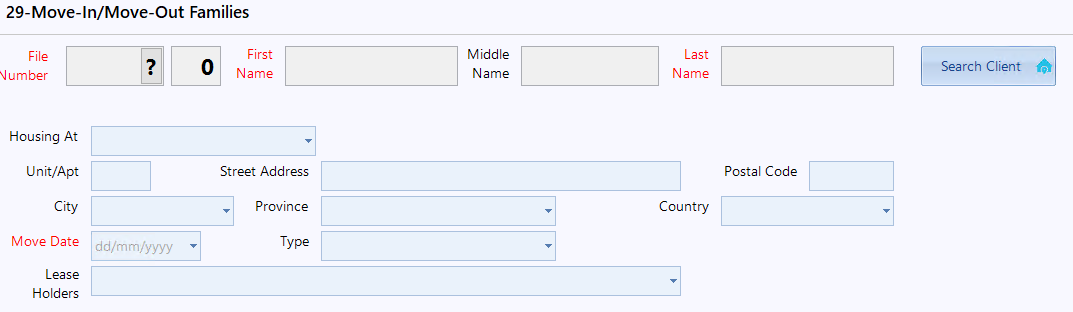
Step 3 (move-ins only): For move-outs, skip to step 4. For move-ins you will need to perform a search to select the client you would like to move in.
- If this is a move-in, click the "Search Client button" to begin the process of selecting which tenant to move in.
- Search for the client in the list; remember that you can filter by name or any other column that you see to find the client. Double-click the client to select.
- You should now be viewing the client that you would like to move into the room, and you should see "Updating Record" near the top to indicate that you are updating this record.
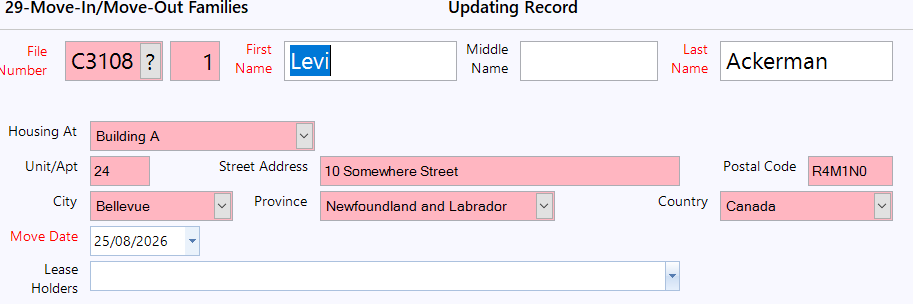
The move date will default to today, but you can specify it further.
- For move-ins: Move Date will be the only editable field.
- For move-outs: Move Date will be editable, and a new address can be optionally entered.
Additional Notes
- A single move-in or move-out operation will move all members of a family file at once.